
Language Settings
If your native language is not English, you can install the corresponding VS Code language extension and then select the language that best fits your needs from the Breezell settings page.
Breezell currently supports the following interface languages:
- English
- Japanese
- Korean
- Spanish
- Portuguese (Brazil)
- Russian
- Simplified Chinese
- Traditional Chinese
Open the Breezell settings page
To open the Breezell settings page, start from the main editor window.
In the top-right area of the editor, find the settings icon. It looks like a small gear icon and is located near the other toolbar icons.
Click the settings icon to open the settings menu.
At the top of this menu, you will see an option named Breezell Settings. Click Breezell Settings.
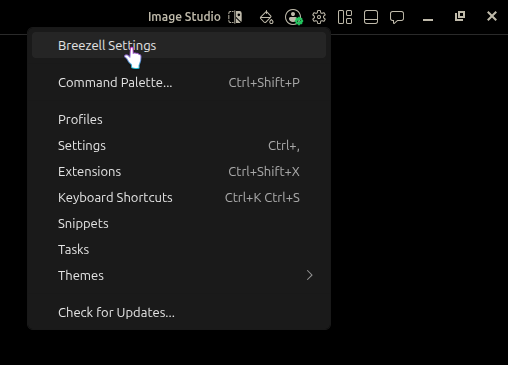
Opening Breezell Settings takes you into Box. Settings open as Breezell Console, with Breezell Settings already selected in the left sidebar.
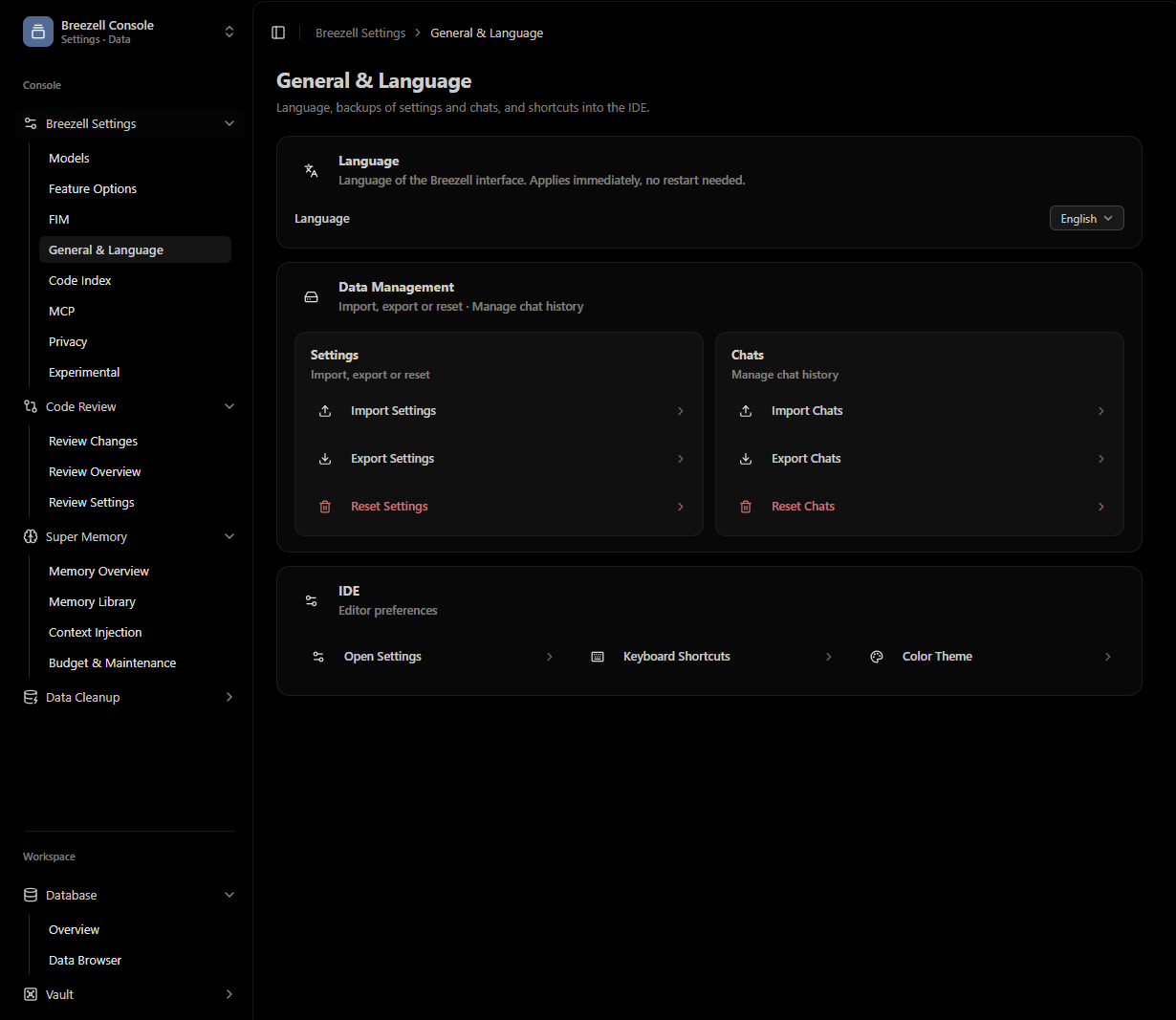
Find the language setting
Inside Box, look at the left sidebar under Breezell Settings.
The sidebar contains several sections, such as:
- Models
- Feature Options
- FIM
- General & Language
- Code Index
- MCP
- Privacy
- Experimental
Click General & Language in the left sidebar.
After entering the General & Language page, you will see the language setting near the top of the page.
The language option is shown as a dropdown selector. By default, it may display English.
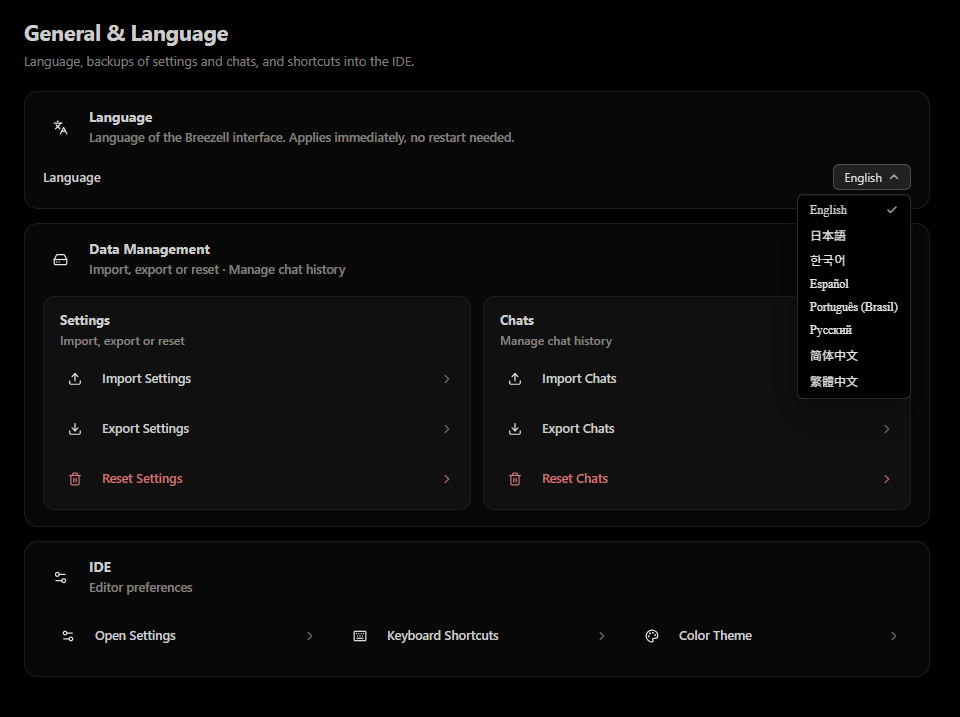
Click the dropdown and select the language you want to use.
Apply the correct language
After selecting your preferred language, Breezell will use that language for the interface wherever localization is supported.
If the interface does not fully switch to your selected language, make sure the corresponding VS Code language extension is installed and enabled.
For example, if you want to use Simplified Chinese, install the Simplified Chinese language extension for VS Code first, then return to Breezell settings and select Simplified Chinese from the language dropdown.
Summary
To change the Breezell language:
- Click the settings icon in the top-right corner of the editor.
- Click Breezell Settings from the menu.
- Box opens as Breezell Console. Open General & Language from the left sidebar.
- Find the language dropdown.
- Select the language you want to use.
This allows users who are not native English speakers to configure Breezell with a more suitable interface language.