
Dialog Box Overview
The Breezell dialog box is the main place where you write prompts, choose a working mode, select a model, attach context, and control how the agent handles the current request.
This page explains the visible controls shown in the dialog box screenshots.
Default Input State
The default input state is the normal starting point for a new message. It keeps the prompt field and essential controls visible.
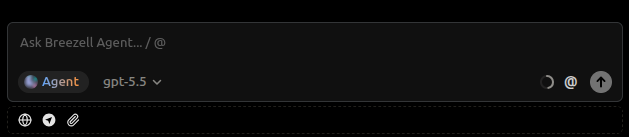
Type your request, choose the mode and model if needed, then send the message to Breezell.
Mode Selector Menu
The pointer highlights the mode selector menu. This menu lists the available working modes.
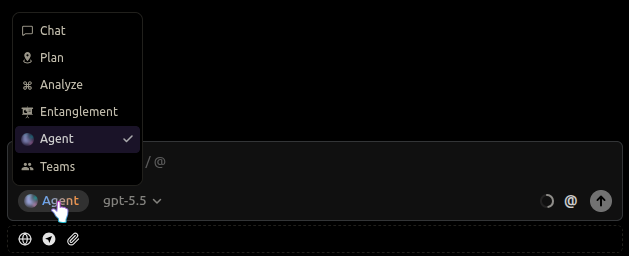
Available modes include:
- Chat for quick questions and answers
- Plan for implementation planning before editing
- Analyze for read-only investigation
- Entanglement for deeper causal reasoning
- Agent for autonomous file edits and tool usage
- Teams for parallel AI teammates on complex tasks
For more details, see Mode Selection. Choose the mode that matches the amount of autonomy and depth you need.
Model Selector
The pointer highlights the model selector. The selector shows the current model and lets you switch to another available model before sending the message.
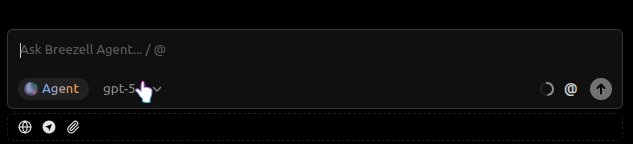
Use this when you want to choose a model with different speed, reasoning, or capability characteristics.
File Upload
The pointer highlights the file upload control.
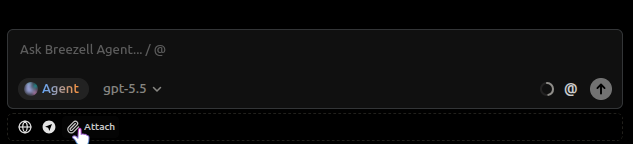
Click this control to attach local files to the current message before sending it to Breezell. Uploaded files become part of the request context, so Breezell can inspect or reference them while answering.
Breezell Browser
The pointer highlights the Breezell Browser control.
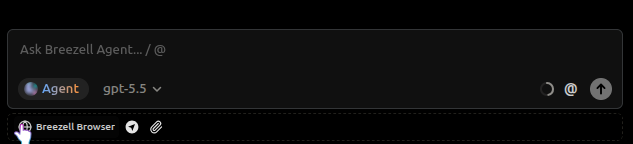
Breezell Browser is Breezell's built-in browser tool. Use it to open webpages, view online content, search for information, and help AI retrieve and analyze web content without leaving the dialog box.
Context Usage Breakdown
The pointer highlights the context usage indicator. Opening it shows a detailed breakdown of how the current context window is being used.
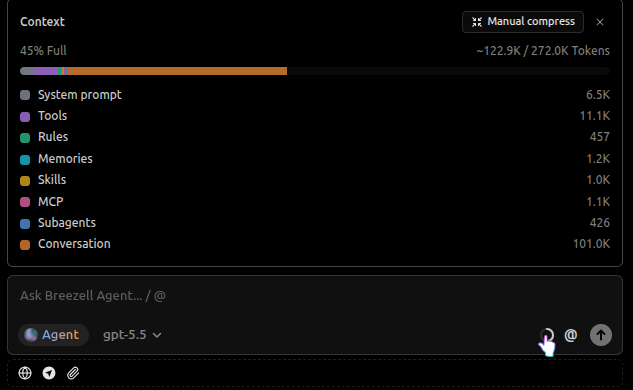
The breakdown separates usage into categories such as system prompt, tools, rules, memories, skills, MCP, subagents, and conversation content. Use it to understand which parts of the session are consuming the most tokens.
Context Manual Compression
The pointer highlights the Manual compress control in the context panel. This action summarizes earlier conversation content so the session can keep useful information while reducing context usage.
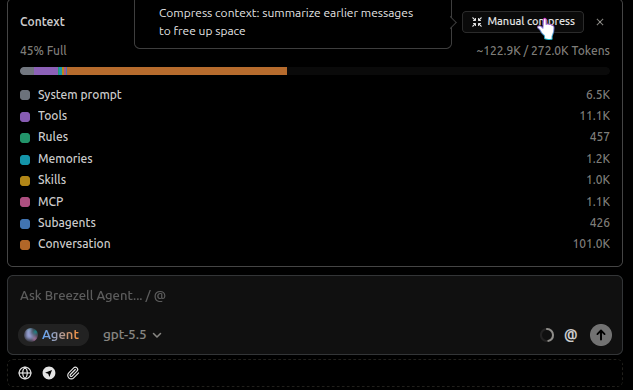
Manual compression is useful during long conversations, especially when the context window is becoming large but you still want to continue in the same session.
Quick Phrases
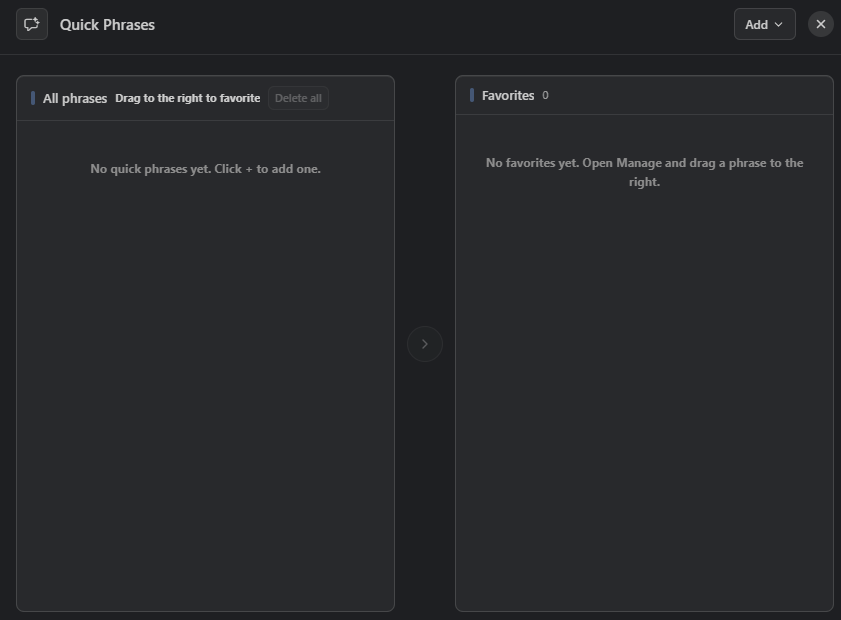
The pointer highlights the Quick Phrases button in the input tray. Quick Phrases let you save frequently used prompts or instructions and reuse them in new messages without typing them again.
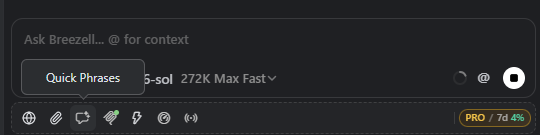
Open Quick Phrases to view and organize saved phrases. Use Add to create a phrase. The All phrases pane contains every saved phrase; drag a phrase to Favorites on the right to keep frequently used items close at hand. Drag it back to remove it from Favorites.
Select a saved phrase to insert it into the current input. You can still edit the text before sending the message.
Mention Menu
The pointer highlights the quick context area used to open the mention menu. The mention menu lets you add files, folders, MCP tools, and skills to the current message.
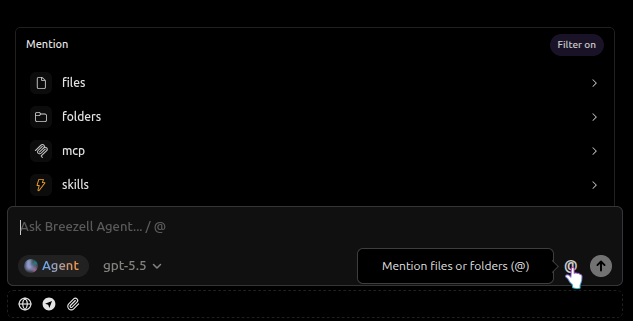
Use this when your request depends on specific workspace content or an external capability. Adding the right context helps Breezell understand what it should inspect or use before answering.
Usage Tips
- Add file or folder context when the request depends on specific project content.
- Agent is the default mode and the recommended automatic workflow for most tasks.
- Change modes only when you need a specific workflow, such as planning first or analyzing without editing.
- Context compression runs automatically. Use manual compression only when you prefer strict manual control or have a special requirement.
- Review the selected model when accuracy, speed, or reasoning depth matters.