
Troubleshooting
This page collects practical solutions for common Breezell installation and startup problems. More cases will be added as they are identified.
Install Breezell on macOS
- Open the Breezell download page and select macOS.
- On a Mac with an M1, M2, M3, or newer Apple chip, download Apple Silicon.
- Open the downloaded image, drag Breezell.app into Applications, wait for the copy to finish, then launch it from Finder → Applications.
“Breezell.app is damaged” or “unidentified developer”
macOS may attach a quarantine flag to apps downloaded outside the App Store. The warning does not necessarily mean that the app file is damaged.
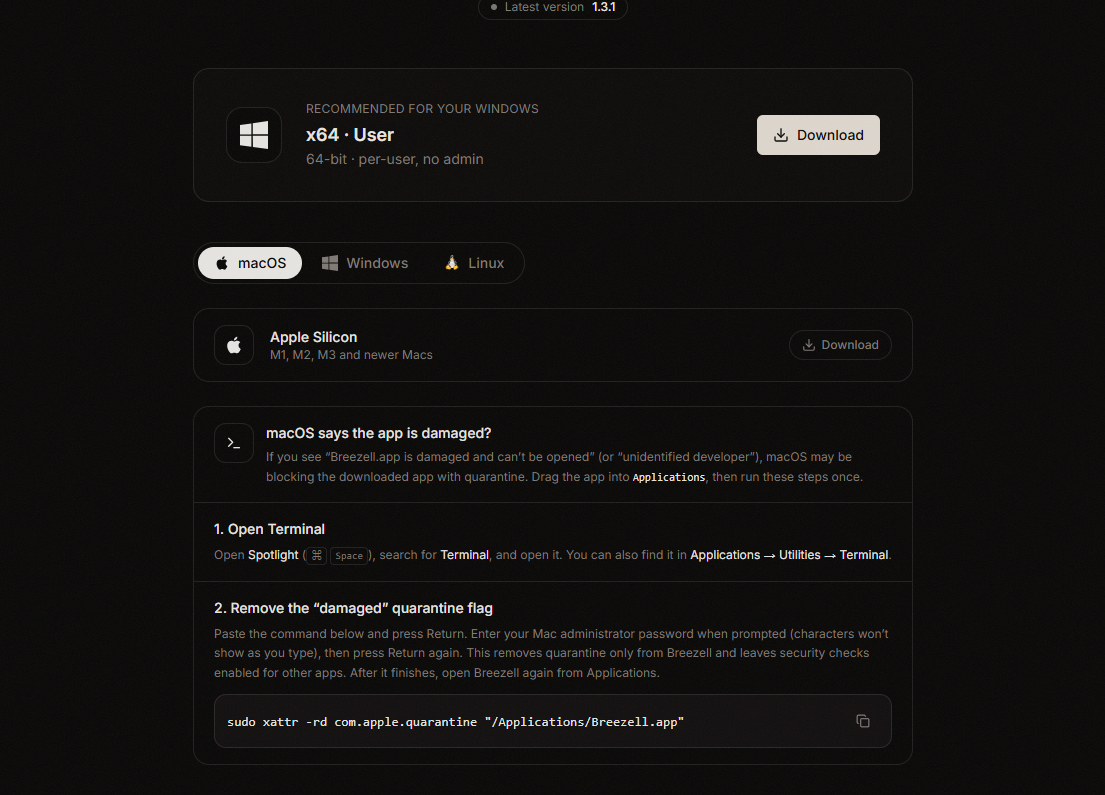
1. Open Terminal
Press Command (⌘) + Space, search for Terminal, and open it. You can also use Applications → Utilities → Terminal.
2. Remove Breezell's quarantine flag
Paste this command and press Return:
sudo xattr -rd com.apple.quarantine "/Applications/Breezell.app"Enter your Mac administrator password when prompted and press Return again. The password is not displayed while you type. No output usually means the command succeeded.
The command removes quarantine only from Breezell.app. It does not disable Gatekeeper or alter security checks for other apps.
3. Open Breezell again
Return to Applications and launch Breezell again.
Security
Use this only for Breezell downloaded from the official Breezell website. Do not remove quarantine from apps whose source you do not trust.
“No such file or directory”
Move Breezell to Applications and confirm its name is exactly Breezell.app. If it is installed elsewhere, replace /Applications/Breezell.app with its actual path.